Comparing Two Lists: Set Difference, Intersection and the Gotchas
"Compare these two lists" sounds like one task. It is really three questions, and almost every wrong answer comes from skipping a step before the comparison, not from the comparison itself.
Three questions, three sets
| Question | Set operation | Typical use |
|---|---|---|
| What is in A but not in B? | Difference A − B | Who unsubscribed, which SKUs are missing from the store |
| What is in B but not in A? | Difference B − A | New sign-ups, files added since the last export |
| What is in both? | Intersection A ∩ B | Customers on both plans, duplicate records across systems |
A single similarity number is often useful as a summary. The usual one is the Jaccard index: shared items divided by all distinct items. In the example above that is 2 ÷ 5 = 40%. It reaches 100% only when both lists contain exactly the same items, regardless of order.
Normalize before you compare
Two entries that a person would call the same are often different strings. Decide which of these matter for your data before comparing, otherwise the "only in A" column fills up with false positives.
| Problem | Example | Fix |
|---|---|---|
| Letter case | Ada@Example.com vs ada@example.com | Compare case-insensitively (right for emails and domains, wrong for case-sensitive IDs) |
| Leading or trailing spaces | "bob " vs "bob" | Trim every item |
| Invisible characters | Non-breaking space from a web page, a BOM at the start of a file, Windows line endings | Strip them; they survive copy and paste from Excel and HTML |
| Quotes and delimiters | "alice" from a JSON array vs alice from a column | Parse each side in its own format first |
| Number formatting | 007 vs 7, 1,000 vs 1000 | Decide: are these numbers or codes? Codes compare as text |
| Duplicates | bob appears three times in A | Sets ignore repeats. If counts matter, compare counts separately |
In Excel and Google Sheets
With list A in column A and list B in column B, flag the items of A that are missing from B:
=COUNTIF($B:$B, A2) = 0
Fill that down and filter on TRUE. In Excel 365 and Google Sheets, a single formula returns the whole difference as a list:
Only in A:   =FILTER(A2:A100, COUNTIF(B2:B100, A2:A100) = 0)
In both:     =FILTER(A2:A100, COUNTIF(B2:B100, A2:A100) > 0)
COUNTIF ignores case, which is usually what you want. It does not ignore trailing spaces, so wrap the source columns in TRIM if the data was pasted from elsewhere.
On the command line
comm compares two sorted files and prints three columns: lines only in the first, only in the second, and in both. The flags suppress columns.
comm -23 <(sort -u a.txt) <(sort -u b.txt)   # only in A
comm -13 <(sort -u a.txt) <(sort -u b.txt)   # only in B
comm -12 <(sort -u a.txt) <(sort -u b.txt)   # in both
Unsorted input is the classic mistake: comm does not complain, it just gives wrong results. Both files must also be sorted under the same locale, and files from Windows need their carriage returns removed first (tr -d '\r').
In Python and SQL
a = {line.strip().lower() for line in open("a.txt") if line.strip()}
b = {line.strip().lower() for line in open("b.txt") if line.strip()}

only_a, only_b, both = a - b, b - a, a & b
similarity = len(both) / len(a | b)SELECT email FROM list_a EXCEPT SELECT email FROM list_b; -- only in A SELECT email FROM list_a INTERSECT SELECT email FROM list_b; -- in both
EXCEPT and INTERSECT remove duplicates, like sets. They are available in PostgreSQL, SQL Server and SQLite, in MySQL from 8.0.31, and Oracle uses MINUS in place of EXCEPT. On older MySQL versions, use LEFT JOIN … WHERE b.email IS NULL.
Picking the right approach
- Two columns already in a spreadsheet: a
COUNTIFcolumn is the least effort. - Large files or a repeated job:
commor a few lines of Python; both handle millions of lines. - Data already in a database:
EXCEPT/INTERSECT, with no export step. - Two lists in different formats, once: a browser tool is fastest, because it does the parsing and normalization for you.
The browser option
The Compare Two Lists tool accepts one item per line, comma-separated values or a JSON array on either side, trims items and strips surrounding quotes, and shows the three groups with counts and a similarity score. Ignore-case and ignore-whitespace are switches, and duplicate counts can be shown per list.
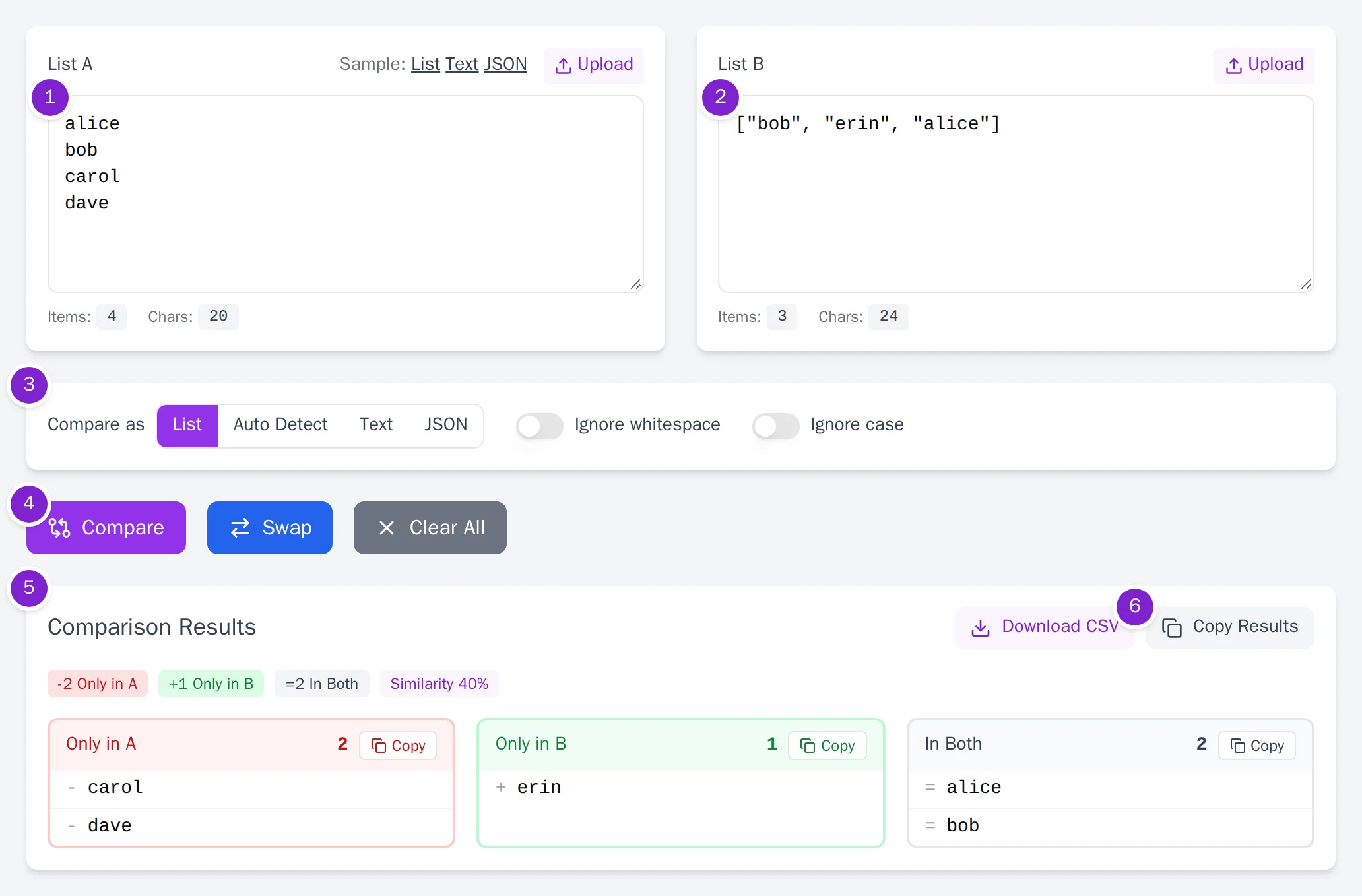
- Step 1: Paste List A, or use Upload to load it from a file. The counter under the box shows how many items were recognized, which is a quick check that the list was split the way you expected.
- Step 2: Paste List B. It does not have to be in the same format as List A.
- Step 3: Set the comparison options. Leave Compare as on List for set comparison, and turn on Ignore case or Ignore whitespace if the two sources format values differently. Text and JSON modes compare line by line instead.
- Step 4: Click Compare.
- Step 5: Read the three groups: only in A, only in B, and in both, each with its count and its own Copy button. The similarity figure is the share of all distinct items that appear in both lists.
- Step 6: Download CSV saves all three groups in one file for a spreadsheet; Copy Results copies them as text.
Comparing structured documents instead of flat lists? Read how JSON diff works. Need the result as code? See turning a list into an array literal.